The system gets more complex over time, requiring extensive maintenance.
Updated Mar 18, 2026
5 Common Salesforce to QuickBooks Sync Problems and How to Fix Them
Most firms operate their applications in isolation, despite huge incentives to integrate them. This amounts to data entry in each one separately, which further leads to discrepancies in information. And that sharing of millions of spreadsheets among teams is a hassle of its own.
You’ll be shocked to know that connecting the CRM system with the accounting system can reduce data errors by “up to 60%” (Source).
Just imagine how easy it can become if you integrate your Salesforce with QuickBooks. Your sales and finance teams can finally be on the same page.
So why would firms not do it? Well, they have their reasons. Integrating these two has many obstacles: sync errors, dealing with data discrepancies, and configuration issues.
In this guide, I’ll focus on these issues and many more that discourage firms from integrating Salesforce with QuickBooks. The following sections will also try to address each of the challenges so as to make the integration smoother.
KEY TAKEAWAYS
- Salesforce and QuickBooks integration can make your finance and sales teams collaborate smoothly.
- However, the integration process itself is not as smooth.
- There can be: data discrepancies, sync and performance issues, complex mapping, and delays.
- Plan the integration properly for maximum benefits.
How Salesforce and QuickBooks Work Together
Salesforce is a leading CRM platform that tracks customer interactions, manages opportunities, and streamlines sales processes. QuickBooks is also a popular software for accounting that manages invoices, payments, and financial reporting.
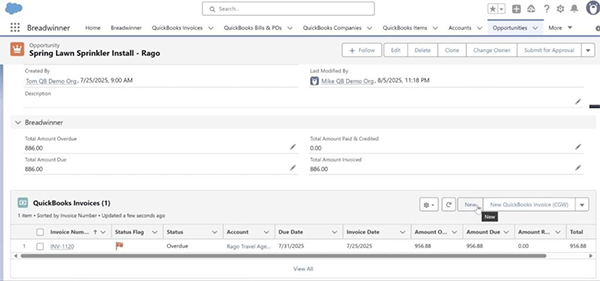
By connecting them, your CRM data and accounting platform work together, allowing sales and finance teams to operate from the same source of truth. For example, when an Opportunity is marked as Closed Won in Salesforce, you can create a corresponding invoice in QuickBooks, so that both teams have a consistent view of revenue and outstanding payments.
Likewise, when a payment is recorded in QuickBooks, that information can be synced back to Salesforce, giving the sales team visibility into customer payment status and history.
The benefits of a Salesforce QuickBooks sync are:
- Eliminate manual data entry and reduce human error
- Speed up the invoicing and payment process
- Keep customers and products consistent across both systems
- Improve financial reporting and forecasting
Several methods exist for connecting these platforms, from custom-built integrations and middleware tools to native apps available on the AppExchange. Let’s take a closer look at these options and how they can be set up.
How the Integration Can Be Set Up
You can integrate Salesforce and QuickBooks through multiple methods based on your business size, data complexity, and desired automation level.
- Custom API Integration: Developers can build a custom API connection between Salesforce and QuickBooks using tools like MuleSoft or direct REST API calls. This approach offers full flexibility, but be prepared to spend more time and resources on development, maintenance, and ongoing monitoring.
- Middleware or iPaaS Solutions: Platforms such as Zapier or Workato offer pre-built connectors to sync basic records like customers and invoices. They are generally suitable for straightforward use cases, but implementing more complex workflows may require more time, expertise, and higher subscription costs.
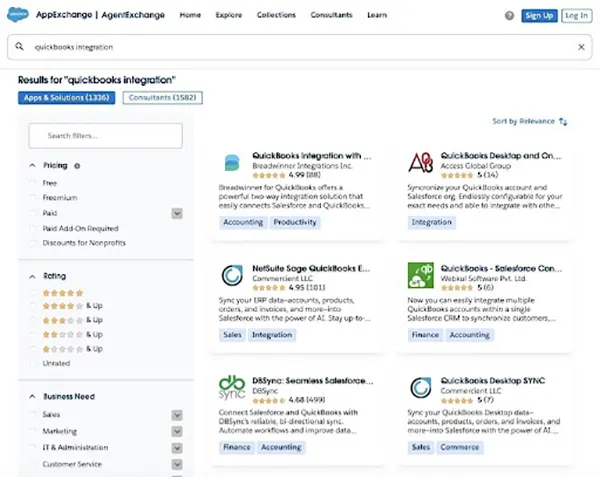
- Native AppExchange Solutions: The simplest and most reliable route: a native integration app. For example, native apps on the Salesforce AppExchange, such as Breadwinner, DBSync, or Accounting on Salesforce, can simplify integration by connecting directly with QuickBooks Online or Desktop and managing data transfers.
However, it is worth reviewing user feedback carefully, as some apps advertise free plans but may require additional payments for full functionality or advanced features.
Common Challenges with the Integration
Despite many benefits, Salesforce and QuickBooks integration is difficult due to many obstacles in the process. These include sync errors, data duplication, mismatched records, or automation rules that stop working as expected.
In some cases, integrations break because of user permission changes, custom fields, or differences in how sync Salesforce and QuickBooks handle data types.
Other challenges include:
- Complex field mappings that are difficult to maintain
- Limited visibility into sync logs and error messages
- Data transfer failures make you eventually resort to manual reconciliation
- Lack of a bi-directional link (updates in one system not reflecting in the other)
These issues not only slow down operations but can also impact reporting accuracy and customer experience. Let’s take a look at the most common ones and how to fix them.
5 Common QuickBooks Salesforce Sync Problems and How to Fix Them
Let’s discuss these problems in detail along with their solutions.
1. Duplicate or Missing Records
Duplicated or missing records are mostly due to field mapping or data access issues. Pre-existing duplicates in systems can also propagate during Salesforce QuickBooks Online sync. Filters or permission settings may block records from transferring altogether.
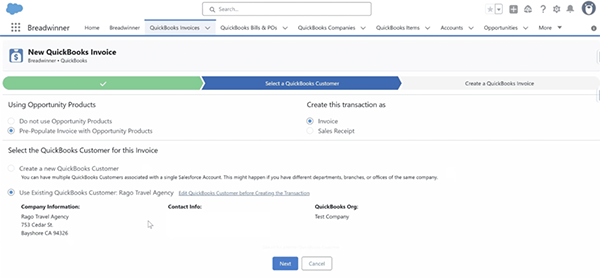
How to fix it: Review and align field mappings, ensuring that Account–Customer and Opportunity–Invoice relationships are correctly configured. Clean up duplicates in both systems before linking. Some integration tools offer built-in validation to prevent duplicate records from being created during automated transfers.
2. Sync Errors and Data Mismatches
Sync errors occur when data is incorrectly shown, and a transfer failure occurs. Differences in data formats, outdated connector versions, or hitting API limits can all contribute to mismatched records or failed syncs.
How to fix it: Ensure your instances and versions meet the integration requirements, and that the connector or integration app is up to date. Monitor API limits and check logs for errors. Testing a small batch of records before a full sync can help identify mapping or formatting issues early.
3. Rate Limits and Performance Constraints
Large data volumes can slow things down. Integration can even fail or miss updates. Salesforce and QuickBooks both impose API call limits, and exceeding them can halt data transfers.
How to fix it: Schedule syncs in batches and optimize the fields being transferred. Monitor API usage and adjust transfer data frequency to stay within system limits, ensuring reliable and timely data flow.
4. Complex Field Mapping and Customization Challenges
Pre-built connectors don’t perfectly fit unique business requirements, such as multi-currency setups, custom objects, or specialized workflows. Without customization, certain data may not be transferred correctly, or workflows may break.
How to fix it: You can go with middleware solutions or custom API integrations, but keep in mind that these options usually require more setup time, technical expertise, and ongoing maintenance. However, most established connectors on the AppExchange also provide guided setup and configuration support to help tailor the app to your business needs.
5. Delayed Financial Visibility and Reporting Gaps
Even with integration, data may not update in real time. This can leave sales teams unaware of outstanding payments or cause gaps in financial reporting. Incomplete mappings or scheduled update intervals can also delay updates.
How to fix it: Review sync Salesforce with QuickBooks schedules and mappings to ensure key fields are included. For critical reporting, confirm that data has synced or adjust expectations for reporting frequency. Tools like Breadwinner simplify data transfer, reducing visibility delays. Proper training ensures staff understand the limitations and can rely on the system confidently.
PRO TIP
To minimize data mismatches, sync only when a deal hits “Closed-Won” status in Salesforce.
Salesforce QuickBooks Integration Checklist
System integrations should have a clear plan. And the system requires extensive maintenance even afterwards. Use the checklist below to prepare for a smoother setup and ongoing maintenance.
- Review Data Quality: Clean up duplicate or outdated records in both Salesforce and QuickBooks. Standardize field formats (e.g., customer names, addresses, and invoice numbers).
- Map Fields Accurately: Align Salesforce Accounts → QuickBooks Customers and Opportunities → Invoices. Check custom objects and additional fields required for reporting or workflows.
- Confirm Permissions and Access: Ensure users and integration accounts have the necessary permissions in both systems. Verify that any filters or sharing rules won’t block critical records from continuous data exchange.
- Plan Sync Frequency: There are sync options among real-time, near real-time, and scheduled sync. Choose whatever works best for you. Confirm that scheduled sync intervals will meet reporting and operational needs. Some apps, such as Breadwinner, allow you to adjust the frequency. For example, the standard sync runs every 15 minutes, but you can configure it to follow your business logic.
- Test with a Small Dataset: Run a trial sync on a subset of records before rolling out to all data. Monitor for errors, duplicates, or missing records.
- Choose the Right Integration Tool: Evaluate custom APIs, middleware, or native apps like Breadwinner. Beyond setup time, technical expertise, cost, and ongoing maintenance, ensure your tool is reliable, secure, and compliant with the company’s data standards.
- Monitor and Maintain: Regularly check QuickBooks sync with Salesforce logs and error reports. Update mappings or permissions if business processes change. Train staff to handle exceptions and understand the integration workflow.
- Plan for Reporting: Ensure linked fields support dashboards, reporting, and financial analysis in Salesforce. Keep in mind potential delays based on your sync schedule.
Key Takeaways for Salesforce QuickBooks Integration
QuickBooks Salesforce integration can completely transform how your sales and finance teams function. But the integration itself needs to be properly done, and that requires planning and maintenance. Understanding common link challenges and following best practices helps prevent data mismatches, workflow disruptions, and reporting gaps.
If you want a secure, native, and low-maintenance approach, Salesforce native apps such as Breadwinner and others can simplify the process, streamline data flow, and ensure compliance with accuracy and automation standards. Looking to test the app before the purchase? You can start a free trial to explore how it works in your environment.
Author - Akachi Kalu

(Accounting Expert & Content Writer)
Related Posts